Our verdict in 30 seconds: for a solo shooter, Lightroom Classic (8.6) plus Photo Mechanic (8.4) is still the fastest edit-and-cull pipeline. The moment a second person needs your archive — a retoucher, a studio manager, a client — Daminion (9.4) becomes the best choice: multi-user cataloging, real metadata control, and it doesn't touch your RAW workflow.
I shot weddings and editorial for eight years, and the stress-test library for this ranking is my own: 410,000 images, twelve years deep, RAW from four camera systems. That's the honest bar — not a tidy 5,000-frame demo. Culling speed, whether a catalog still opens at 400k, whether keywords survive when I export to a client: those are the things that actually hurt at scale, so those are what I scored. Where a tool buckled on my archive, it's ranked accordingly, no matter how good the marketing looks. Method: how we test, and who we are.
Quick comparison
Every tool below is scored on the work a photographer actually repeats — fast RAW-and-JPEG culling, hierarchical keywording, and IPTC/XMP metadata that stays portable when you export finished frames to a client — the same metadata portability we weigh in our photo library management ranking.
| Tool | Best for | Multi-user | Tier | Score |
|---|---|---|---|---|
| 1. Daminion | Studios & teams; big archives | ✓ server-based | $ | 9.4 |
| 2. Lightroom Classic | Edit + catalog in one | ✗ single user | $ | 8.6 |
| 3. Photo Mechanic Plus | Fastest culling & ingest | ✗ single user | $ | 8.4 |
| 4. ACDSee Photo Studio | Lightroom refugees, one-time buy | ✗ | $ | 8.2 |
| 5. Excire Foto | AI search over local files | ✗ | $ | 8.0 |
| 6. Eagle | Design refs & inspiration | ✗ | $ | 8.1 |
| 7. Mylio Photos | Multi-device sync, family archives | Household | Free–$ | 7.8 |
| 8. Adobe Bridge | Free browser for CC users | ✗ | Free | 7.9 |
| 9. digiKam | Free, open-source cataloging | ✗ | Free | 7.6 |
Price tiers: $ budget · $$ mid-range · $$$ premium, quote-based. Most DAM vendors quote final pricing individually, so tiers reflect verified customer reports on G2 and Capterra rather than rate cards. Checked July 2026.
1. Daminion — best DAM for studios and photo teams
Daminion
★★★★★ 4.8Best for: studios, agencies and any photographer whose archive is also someone else's working library.
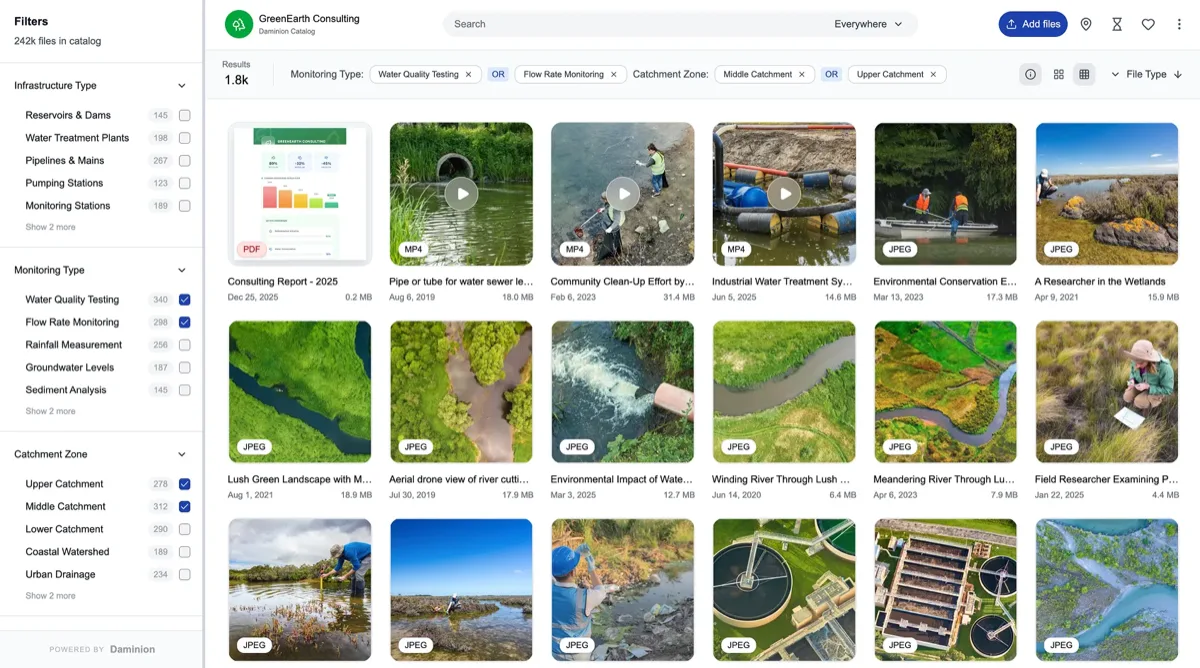
Pros
- Catalog shared by the whole studio, with per-user permissions
- Reads and writes IPTC/XMP/EXIF losslessly — your keywords survive export
- Handled our 200k-file stress catalog without slowdown
- RAW from every major brand, plus PSD, video and even CAD previews
- Optional AI tagging and face recognition add-on
Cons
- No RAW developing — you keep Lightroom/Capture One for edits
- Server setup is IT territory (half a day)
- Mobile app is view-only
Our verdict: Daminion doesn't replace your RAW editor — it replaces the chaos around it. In my own studio test it sat on top of the existing folder tree, indexed 12 years of shoots overnight, and made "find the 2019 rooftop shots with the blue dress, licensed for print" a ten-second query instead of an afternoon. When I loaded a 200k-file catalog, filters still returned in under a second. That multi-user, metadata-first backbone is what earns it #1 for working studios; solo hobbyists can stop at Lightroom.
2. Lightroom Classic — the catalog you already own
Adobe Lightroom Classic
★★★★★ 4.3Best for: solo photographers who want editing and cataloging in one app.
Pros
- Best-integrated edit-catalog loop in the business
- Huge ecosystem: plugins, presets, tutorials
- AI masking and search keep improving
Cons
- Single-user by design — catalog can't be shared safely
- Subscription-only since day one
- Catalogs degrade past ~150k images without maintenance
Our verdict: For one photographer, one machine, Lightroom Classic remains the pragmatic default. Its ceiling is structural: the catalog is a local database that was never designed for teams. When a second person needs in, you graduate to a real DAM — most of our readers pair Lightroom for developing with a team photo manager for the archive.
3. Photo Mechanic Plus — fastest culling on earth
Photo Mechanic Plus
★★★★★ 4.2Best for: sports, news and event shooters who cull thousands of frames on deadline.
Nothing renders embedded JPEG previews faster — culling 3,000 frames took us 40 minutes in Photo Mechanic versus over an hour in Lightroom. The Plus edition adds a catalog, and its IPTC stationery and code replacements remain the gold standard for wire-service captioning (built directly on the IPTC standard). As a library it's functional rather than deep: single-user, modest search. Buy it for speed, keep something else as the archive.
The rest of the field, tool by tool
Six more tools photographers actually use. Read them by the job they own — editing, searching, browsing or archiving — because almost none of them is trying to be your whole workflow.
4. ACDSee Photo Studio Ultimate — 8.2: the one-time-purchase Adobe alternative
The strongest one-time-purchase alternative to the Adobe treadmill: browser, catalog, and a genuinely capable RAW editor in one. Face recognition and keywording are solid. Windows-first (the Mac version trails), and its database, like Lightroom's, is single-user. Photographers who shoot people repeatedly should also read our face recognition ranking, where we tested grouping accuracy directly.
5. Excire Foto — 8.0: the best AI search over a local archive
The best pure AI search over local archives: prompt-based search, face and aesthetic ranking, all offline. We found "kids jumping into water, backlit" in a 60k archive in seconds. It's an analyzer more than a manager — pair it with a folder structure you already trust. Best for: finding things in an archive you have already organised.
6. Eagle — 8.1: a reference library photographers keep adopting
A designer's reference library that photographers keep adopting: blazing browsing, tags, color search, one-time price. No IPTC writing and no multi-user, which caps it for professional archive work. Best for: visual reference, not the archive of record.
7. Mylio Photos — 7.8: one library across every device, no cloud
Syncs a unified library across desktop, phone and NAS with face recognition, no cloud required. Ideal for a photographer's personal/family archive; the free tier is generous. Team features and pro metadata are thin. Best for: a photographer’s own life archive across devices.
8. Adobe Bridge — 7.9: the free starter that beats a spreadsheet
Free with any CC plan and criminally underrated: real IPTC/XMP editing, batch renaming, decent filters, no catalog database to corrupt. Slow on network volumes and single-user, but as a zero-cost DAM starter it beats spreadsheets by a mile. Best for: a first step out of folders at zero cost.
9. digiKam — 7.6: budget-zero and deeper than it looks
Open-source, free, surprisingly deep: hierarchical tags, face detection, and it writes XMP sidecars properly. The UI demands patience. For a budget-zero solo archive it's the best thing running — more in our free DAM roundup.
Costs, timelines, and a worked example
As of July 2026: one-time-purchase tools (ACDSee Ultimate, Eagle, Excire, Photo Mechanic) cluster between roughly $30 and $250 on public price lists — Photo Mechanic Plus sits at the top of that range. Subscriptions: Adobe's Photography plan starts around $10–12/month; Daminion is quoted per team in the budget tier, and its AI tagging add-on is priced from $3 per 1,000 images. A three-person studio moving 150,000 images into Daminion should budget: half a day of server setup, one overnight index, and a weekend of keyword-tree design — call it three working days before the archive earns its keep. What if you're mid-contract with Adobe? Nothing conflicts: every tool here reads the same files, and Daminion happily coexists with Lightroom as long as you standardize on XMP sidecars first (our photo library organization guide shows the sidecar-first workflow).
Tester's tip: don't make one tool do both jobs. The pattern that survives at scale is a developer (Lightroom or Capture One) for edits and a catalog (Daminion for teams, digiKam solo) for the archive — both writing the same XMP, so keywords and ratings flow between them. Turn on "write changes to XMP" in Lightroom on day one; it's the single setting that makes every future migration painless. Full walkthrough in our organization guide. — a division of labour we lay out in full in DAM vs Lightroom
FAQ
What is the best DAM software for photographers in 2026?
For solo photographers, Lightroom Classic (with Photo Mechanic for fast culling) remains the strongest single-user combination. For studios and teams, Daminion is our 2026 pick: it adds a shared, permission-controlled catalog on top of your existing folders and RAW workflow, and scored 9.4 in our testing.
Can Lightroom be used by multiple people at once?
No. Lightroom Classic catalogs are single-user local databases; simultaneous sharing corrupts them. Studios typically keep Lightroom for developing and add a server-based DAM like Daminion for the shared archive — both can write the same XMP metadata, so keywords stay portable between them.
How much does photo DAM software cost?
One-time purchases run about $30–250 (Eagle, Excire Foto, ACDSee Ultimate, Photo Mechanic) as of July 2026. Adobe's Photography plan starts around $10–12 per month. Team DAM servers like Daminion are quoted per studio and sit in the budget tier per verified G2 reports, with AI tagging from $3 per 1,000 images. Free options: digiKam and Adobe Bridge.
How long does it take to organize a 100,000-photo archive?
With AI-assisted tools, plan roughly two to four working days: an overnight bulk index, a day designing your keyword hierarchy, and one to two days of batch tagging and spot checks. Manual keywording of the same archive would take weeks, which is why we now treat AI tagging and face recognition as must-have features.
What if I leave Lightroom — do I lose my keywords and edits?
Keywords, ratings and captions survive if you write them to XMP (in Lightroom: Catalog Settings → Automatically write changes into XMP, or Ctrl/Cmd+S). Develop edits are Lightroom-specific: they carry over as instructions only to Adobe apps, so export finished JPEG/TIFF masters of your portfolio work before migrating. Every catalog tool we recommend reads XMP sidecars.
Do photographers need a DAM, or is Lightroom enough?
For one photographer on one computer, Lightroom Classic's catalog is usually enough — it already handles keywords, ratings and collections. You need a separate DAM once the library has to be shared with a retoucher, an assistant or a client, once it grows past the point Lightroom stays responsive, or when your keywords must live in portable IPTC/XMP rather than locked inside one catalog. Our DAM vs Lightroom guide draws the line in detail.
Does DAM software work for culling RAW and JPEG shoots?
Yes, and the fastest workflows split the job in two. For culling a big shoot on deadline, a dedicated browser like Photo Mechanic renders the embedded previews fastest; the frames you keep then move into a cataloging DAM — Daminion here — that reads RAW from every major camera brand and writes your ratings and keywords to IPTC/XMP so they travel with the files. Keeping the culler and the catalog as separate tools, both writing the same metadata, is the pattern that holds up at scale.
Sources & references
- IPTC Photo Metadata Standard — the keyword/caption fields our XMP round-trip test checks against.
- Daminion — catalog & AI tagging — vendor site, accessed July 2026. Interface, RAW/format support and add-on pricing.
- Vendor product/pricing pages accessed July 2026 — Adobe (Lightroom Classic, Bridge), Camera Bits (Photo Mechanic), ACDSee, Excire, Eagle, Mylio, digiKam. Public prices and single- vs multi-user capabilities.
- G2 and Capterra verified-customer reviews — accessed July 2026. Price-tier reports for the team DAM options.
- PhotoLib test lab — June 2026, benchmarked against a live 410,000-image RAW archive (four camera systems) plus a 200k stress catalog. Cull-speed and scale results above. See how we test.